

Quick advice
If your child uses the Epic Games Store, these 3 controls are a great starting point to help keep gaming positive.
Set content limits
Keep your child from accidentally seeing content inappropriate for their age by setting content limits.
Track screen time
Seeing how much time your child spends gaming can help you balance their device use.
Manage spending
Avoid unexpected purchases in the Epic Games Store by setting a PIN for spending.
How to set parental controls in the Epic Games Store
If a child under 13 signs up to the Epic Games Store, they automatically received a cabined accounts. Cabined accounts allow children to play Fortnite, Rocket League and Fall Guys with limited features.
You will need access to your child’s Epic Games account and gaming device.
Giving parental consent to under-13s
If your child is under 13, they require parental consent to use certain features in the Epic Games Store.
To set up parent permissions:
Step 1 – If your child already has an account, they will need to enter your email address so you can give permission.
If your child is new to Epic Games, create your account and enter their birthday. You will create an account for them later.
Check your email for one from Epic Games. Click CONTINUE in the email for the next step.

Step 2 – Read through Epic Games’ Terms of Service. Click AGREE and follow the prompts.

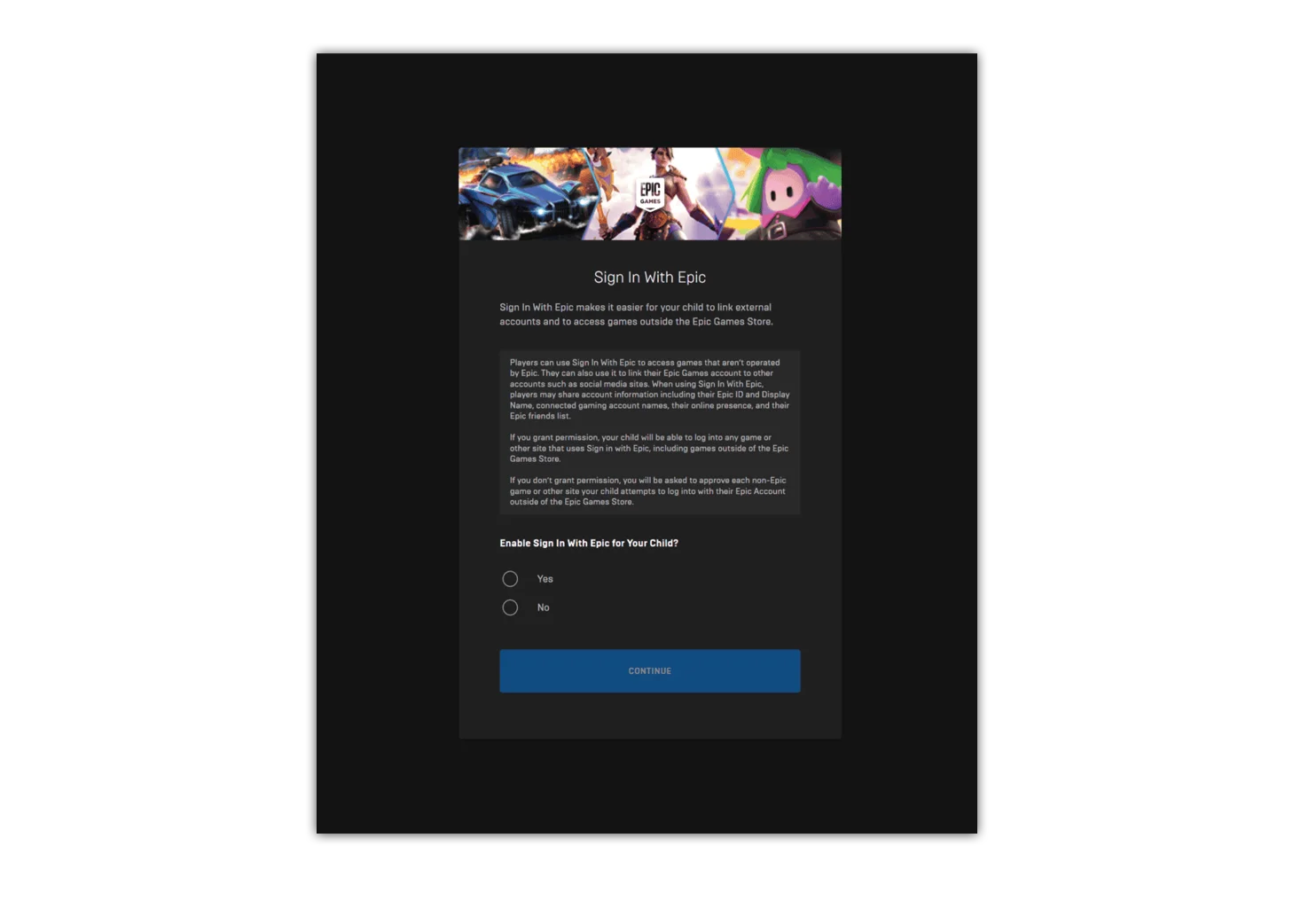
Step 3 – Decide where your child can access games from other platforms with their account. It is recommended that you select No for best safety practise.
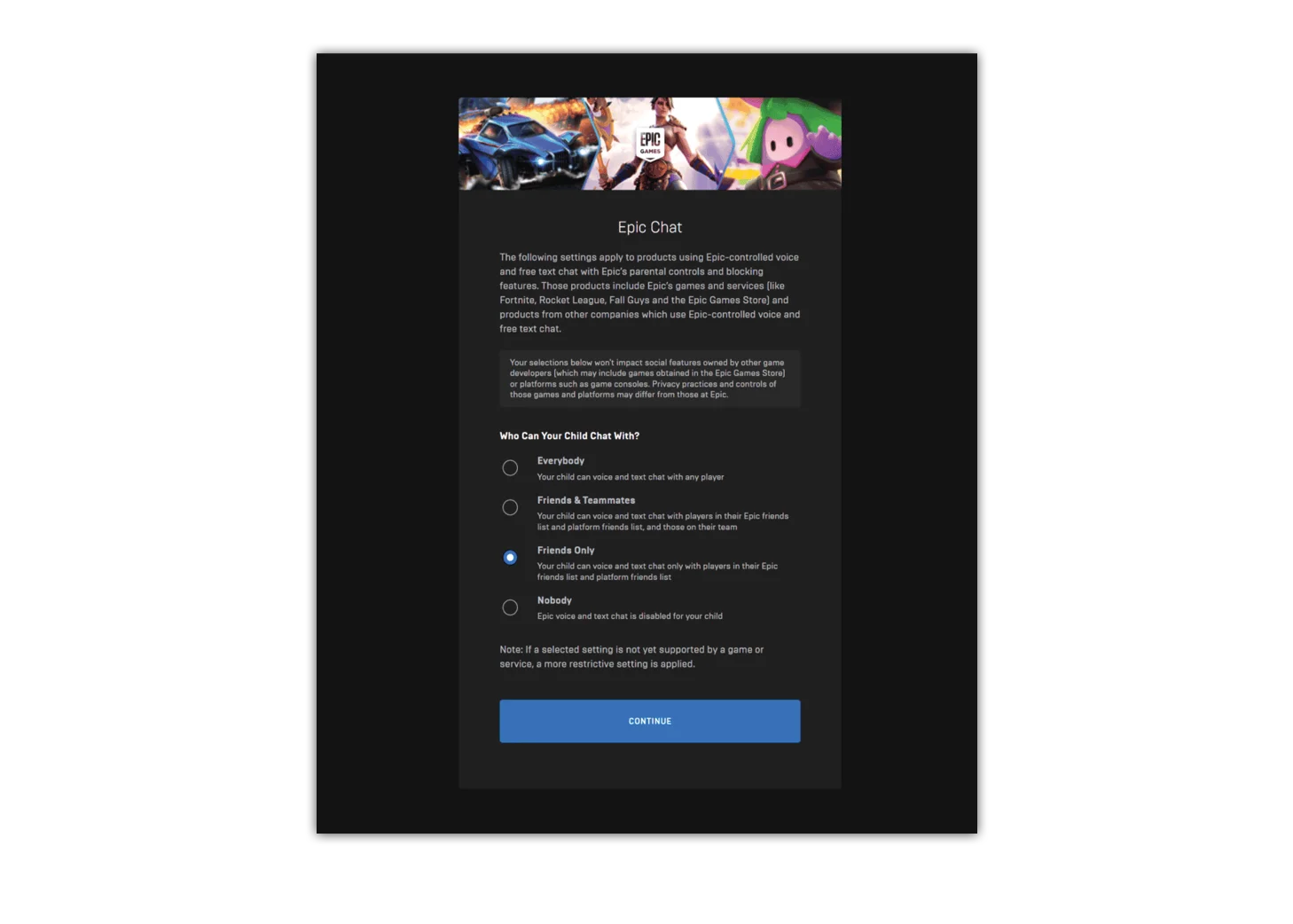
Step 4 – Set who your child can communicate with. Friends Only and Nobody are the best options for those under 13.
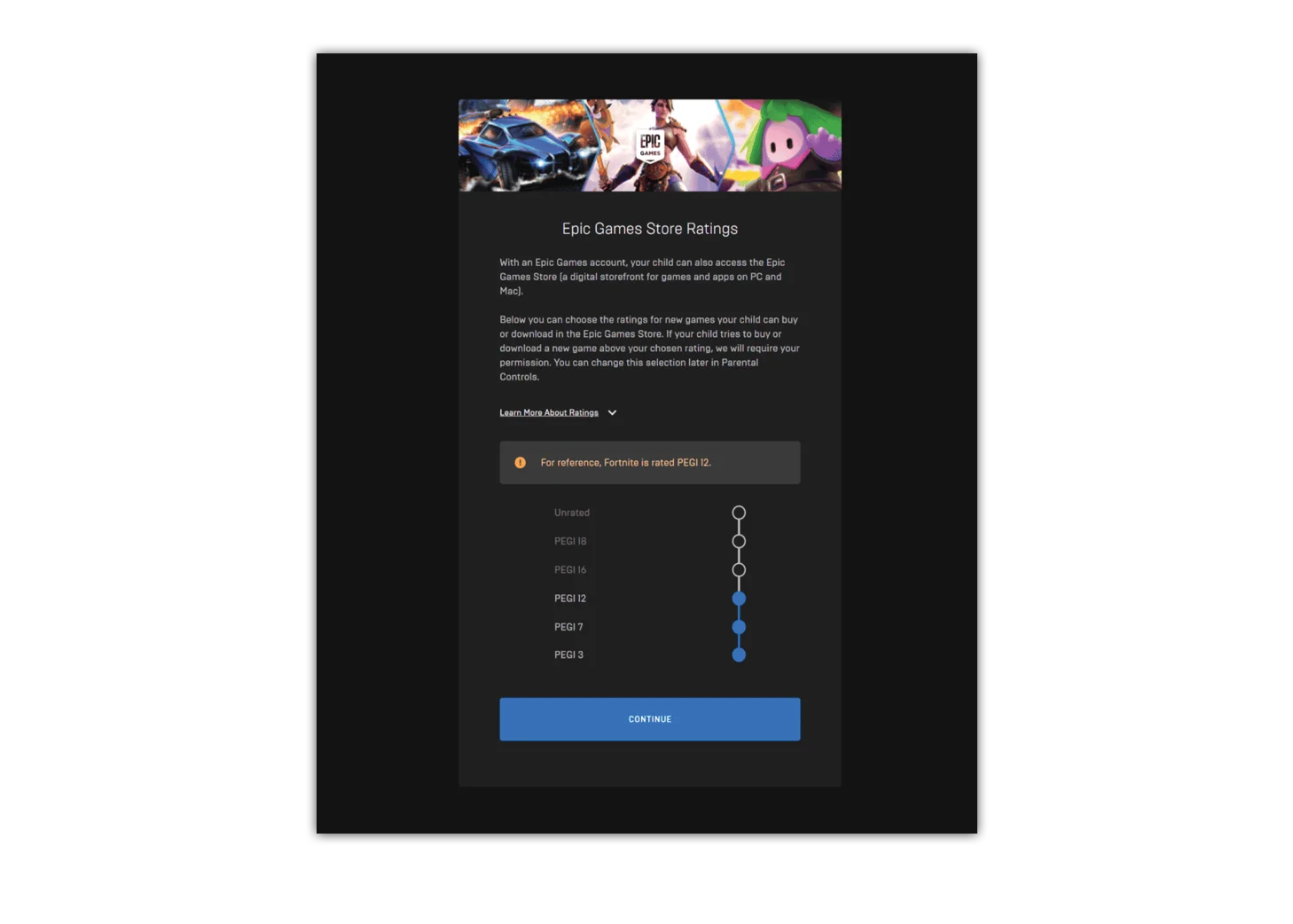
Step 5 – Select the content you want your child to have access to. Fortnite, for example, has a PEGI 12 rating.
Whatever you set, your child will have access to all content within and below that rating.
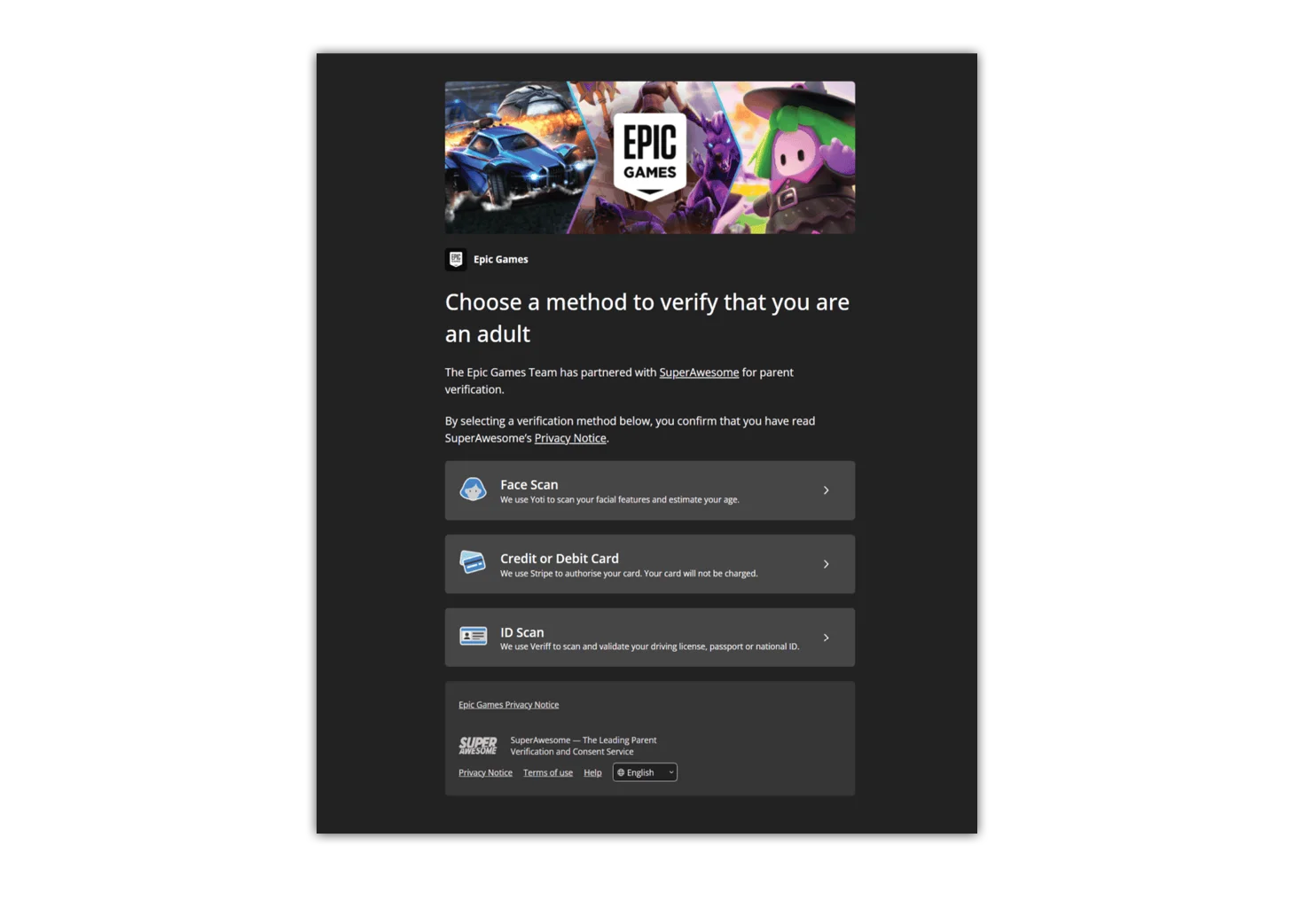
Step 6 – Verify your age by selecting the option that works for you. They include a face scan or through a debit/credit card or ID.
Set up your child’s account details if applicable.
How to set up a PIN
To start using parental controls in the Epic Games Store, you first need to set up a PIN.
To set up a PIN:
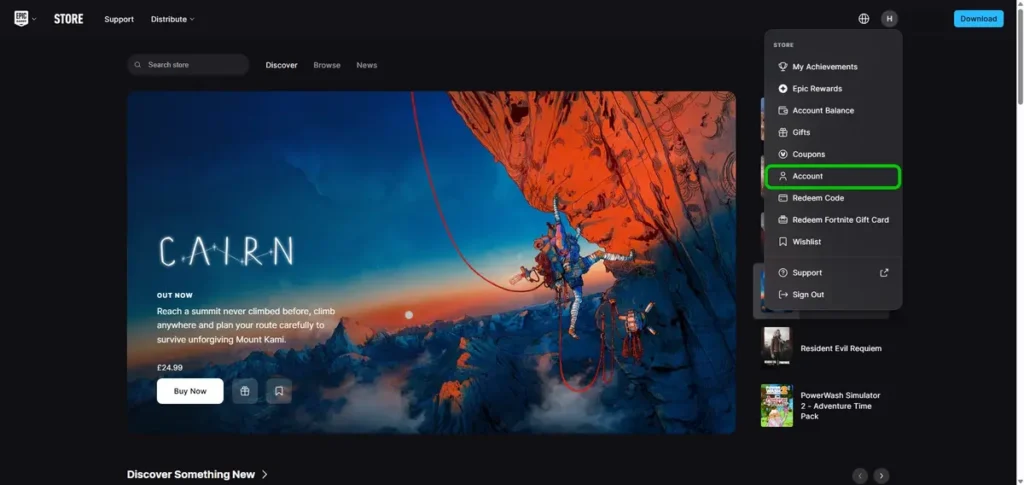
Step 1 – Create an account for your child and/or login to the app with the account your child uses. Click the profile icon in the top right corner.

Step 2 – Click on Account.
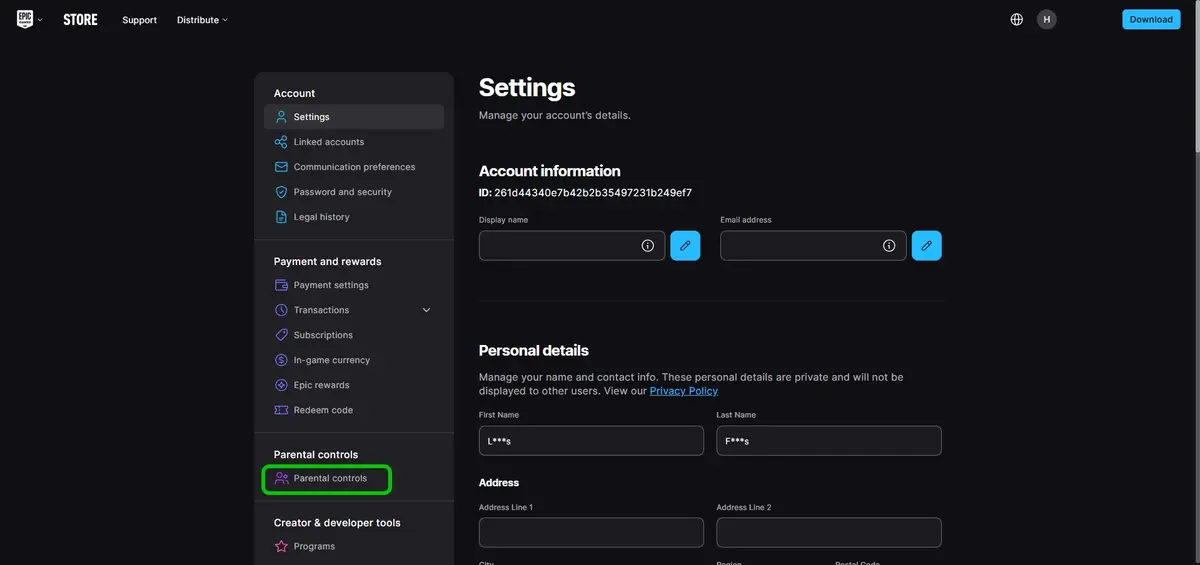
Step 3 – Select Parental controls.
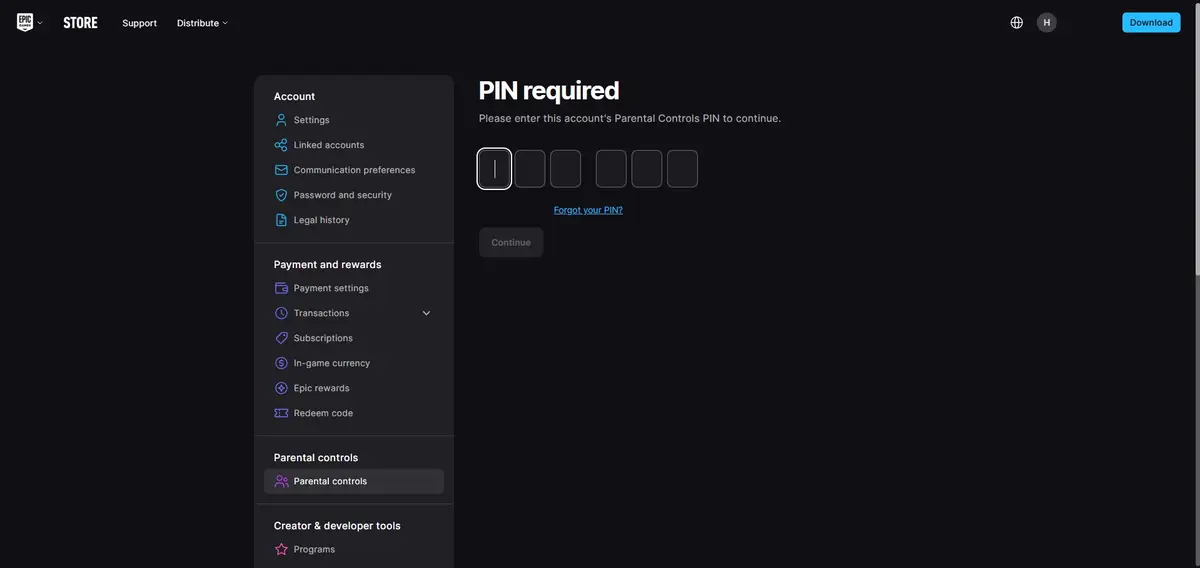
Step 4 – Choose a memorable 6-digit PIN and enter it. You will need this PIN to alter any controls.
Where to limit spending and purchases
Help your child manage how much they spend in the Epic Games Store or to stop them spending at all under the parental controls section.
To manage spending settings:
Step 1 – From the home screen, click the profile icon in the top right corner then Account.

Step 2 – Click Parental controls and enter your 6-digit PIN.

Step 3 – Within the General tab, under Epic Games Payment, click the toggle. When it is blue, all purchases will require your 6-digit PIN.

Remember: This only affects spending through the Epic Games Store and not through other platforms. See other console guides for parental controls on other devices and apps.
How to set up content limits by age
To manage what kind of content or games your child can access in the Epic Games Store, set up age limits to restrict inappropriate content.
To set age limits:
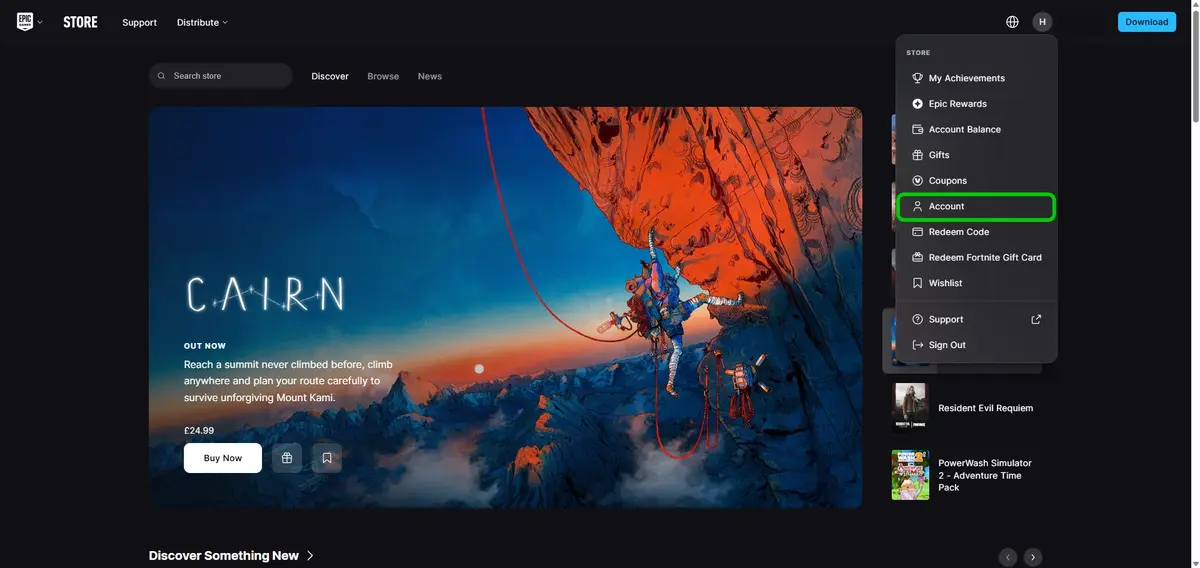
Step 1 – From the home screen, click the profile icon in the top right corner then Account.
Step 2 – Click Parental controls and enter your 6-digit PIN.
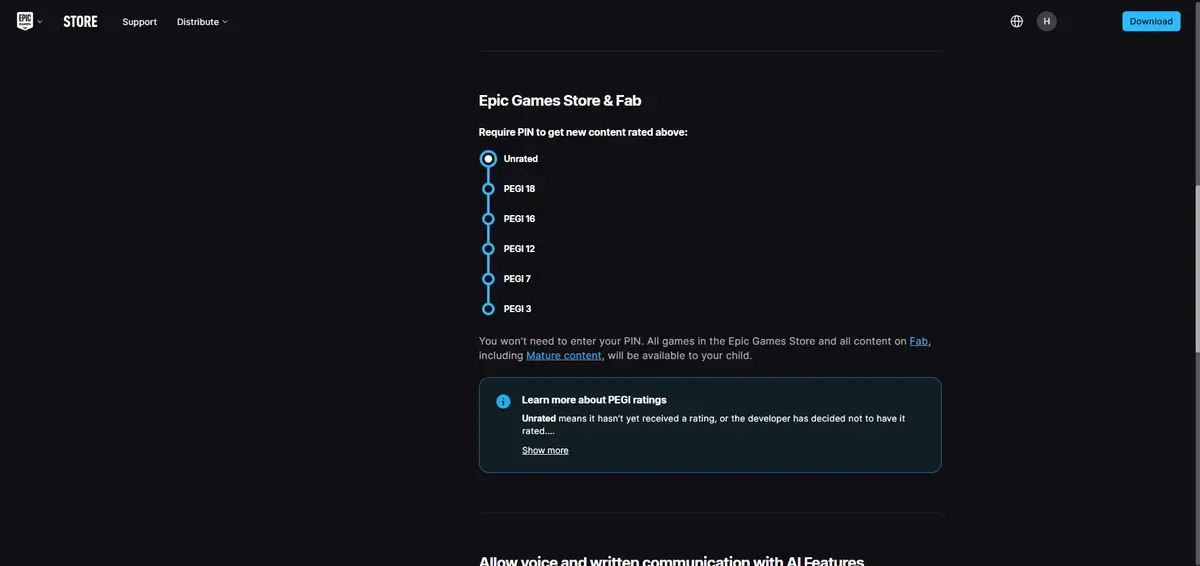
Step 3 – Scroll down to Epic Games Store & Fab. Choose a PEGI rating that is suitable for your child. They will be unable to get new content above this age rating without your PIN.
Manage communications
Epic Games Store parental controls allow you to control who can message your child as well as ‘friend’ them or engage in voice chat.
To limit who can contact your child:
Step 1 – From the home screen, click the profile icon in the top right corner then Account.
Step 2 – Click Parental controls and enter your 6-digit PIN.
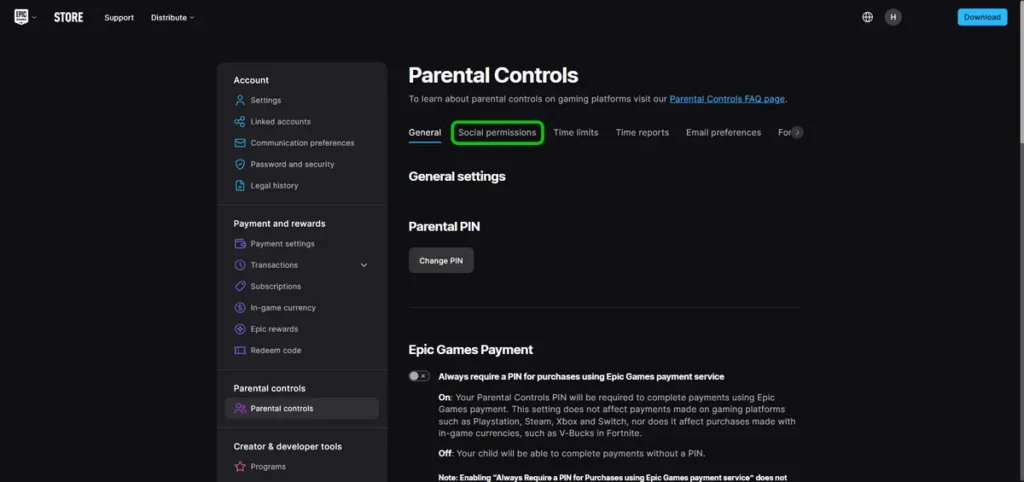
Step 3 – Go to Social permissions.
To limit who can add your child as a friend:
Under Epic Friends Permission, click the toggle to blue. This means that your child will need your PIN to add or accept friend requests so you can screen who they talk to online.
To limit who they voice chat with:
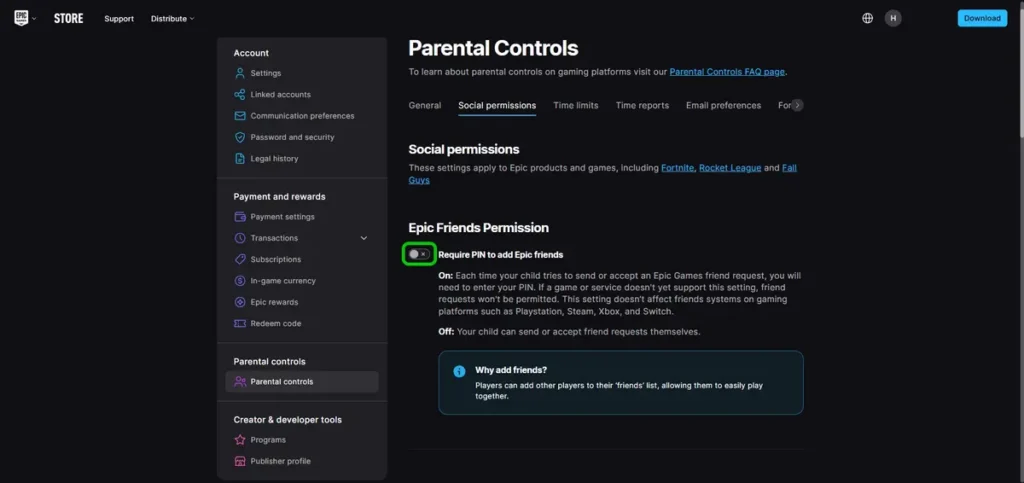
Scroll further down to Epic voice chat permission. Choose between voice chatting with Everybody, Friends, team members and connections, Friends Only or Nobody. Friends Only and Nobody are best for most children unless they are an older teen.
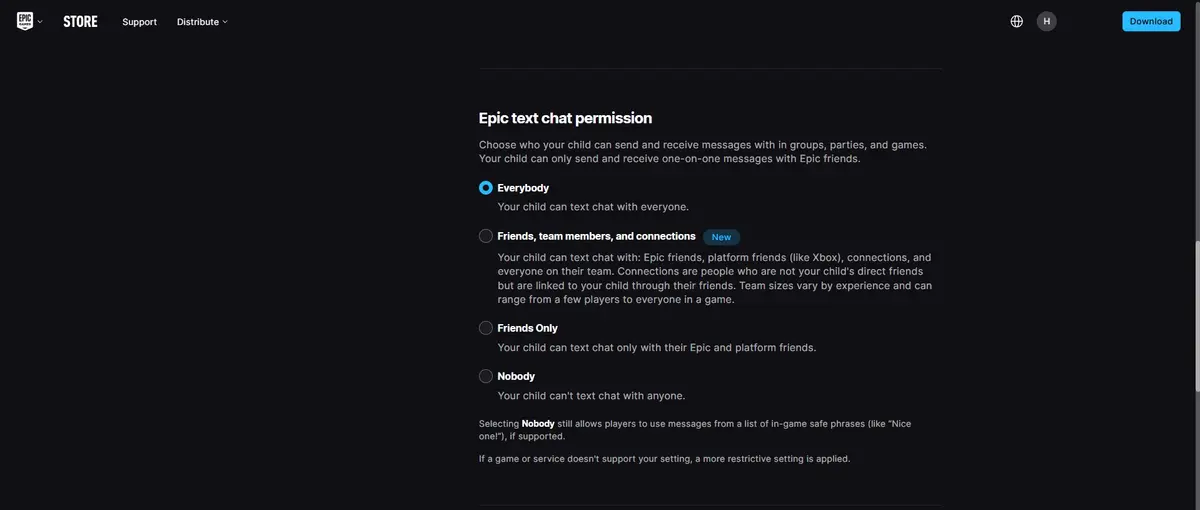
To limit who they text chat with:
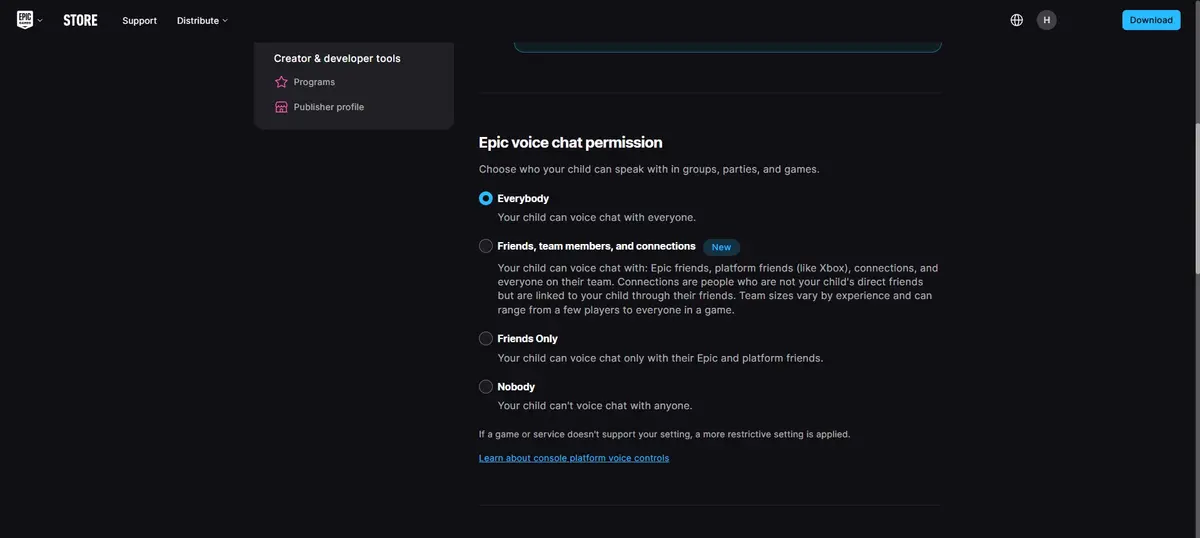
Scroll down to Epic text chat permission. Choose between text chatting with Everybody, Friends, team members and connections, Friends Only or Nobody. Friends Only and Nobody are best for most children unless they are an older teen.
Where to filter inappropriate language
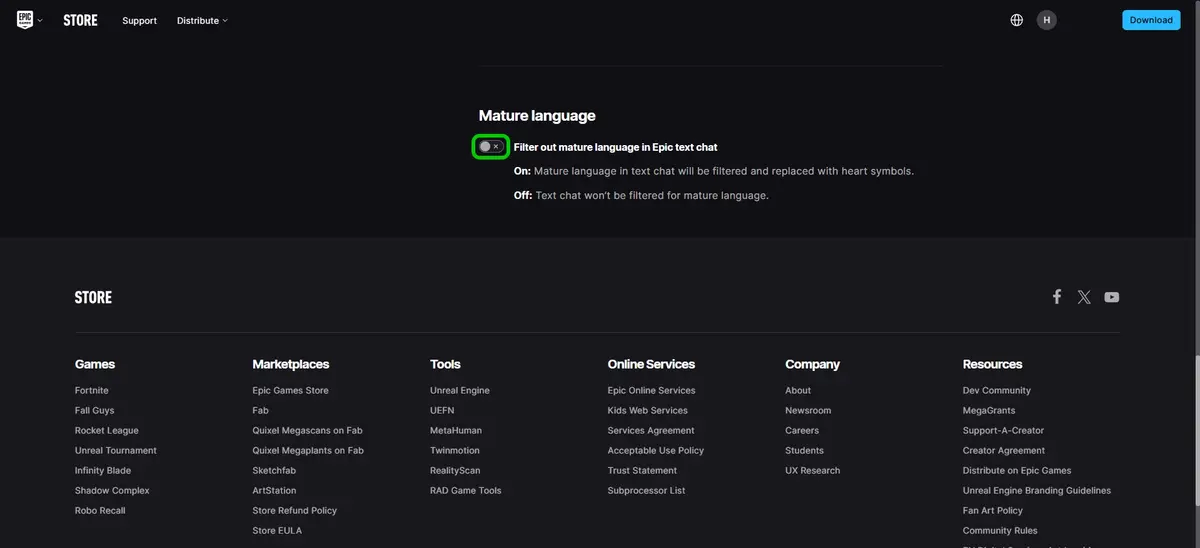
You can use Epic Games Store’s parental controls to limit the inappropriate language your child sees. Any mature language is replaced by hearts.
To set up inappropriate language filters:
Step 1 – From the home screen, click the profile icon in the top right corner then Account.
Step 2 – Click Parental controls and enter your 6-digit PIN.
Step 3 – Go to Social permissions and scroll to the bottom of the page. Under Mature language, click the toggle to blue to enable the filter.
Receive screen time reports
You can use Epic Games Store’s parental controls to help manage how much time your child spends playing.
Enable Epic Games to send weekly usage reports to you so you can help your child balance their screen time.
To set up screen time reports:
Step 1 – From the home screen, click the profile icon in the top right corner then Account.
Step 2 – Click Parental controls and enter your 6-digit PIN.
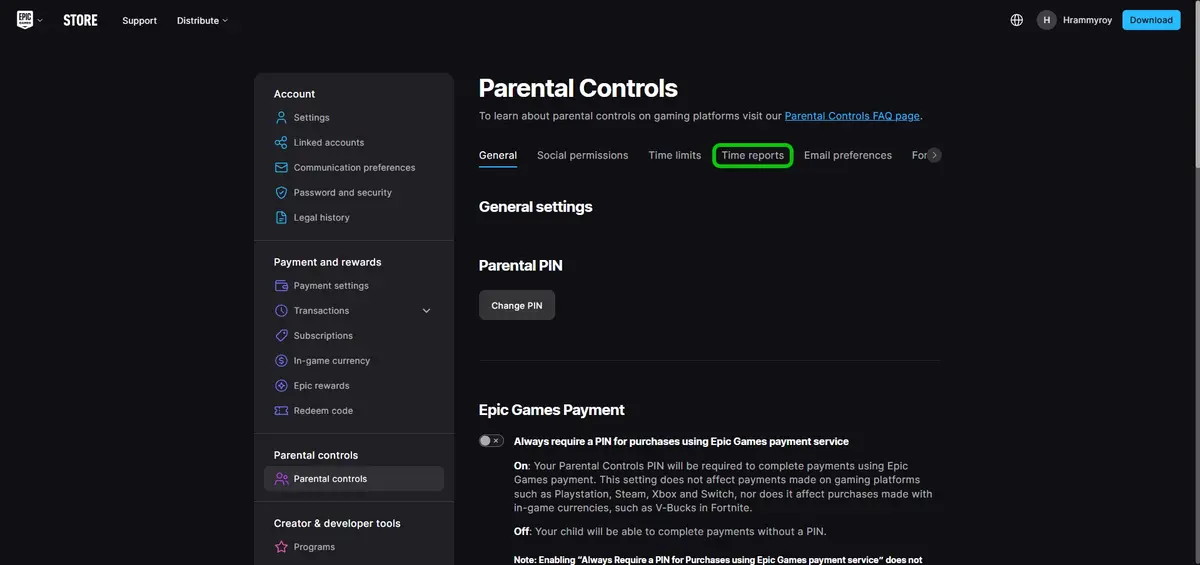
Step 3 – Go to the Time reports tab.
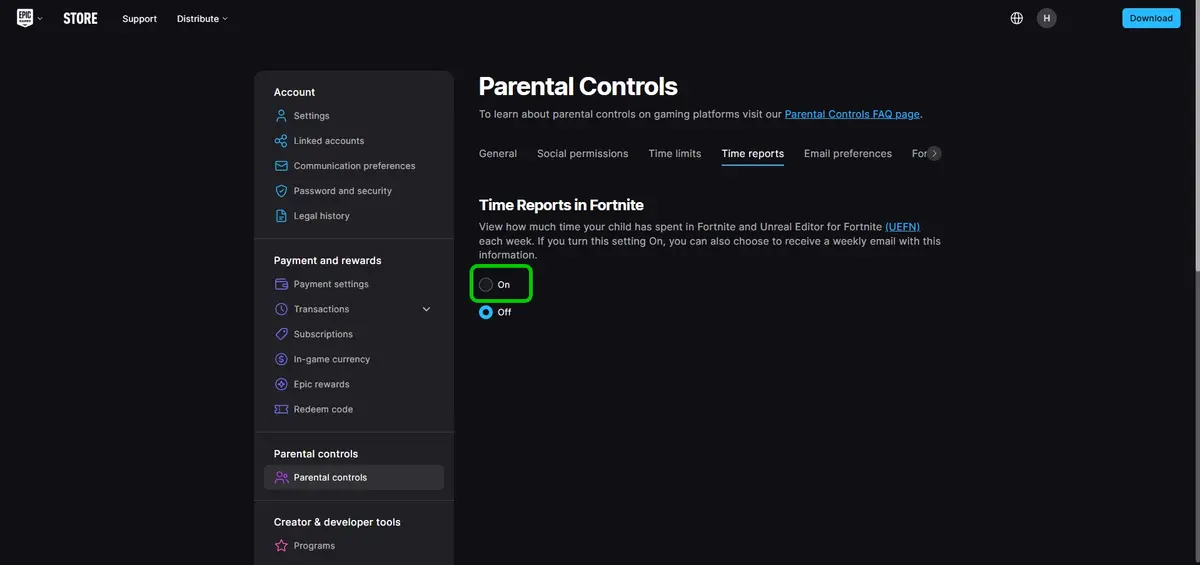
Step 4 – Click On to begin receiving weekly emails detailing how long your child has spent in Fortnite.
Set screen time limits
You can use Epic Games Store’s parental controls to set limits on how long your child spends playing Fortnite.
To set screen time limits:
Step 1 – From the home screen, click the profile icon in the top right corner then Account.
Step 2 – Click Parental controls and enter your 6-digit PIN.
Step 3 – Go to the Time limits tab.
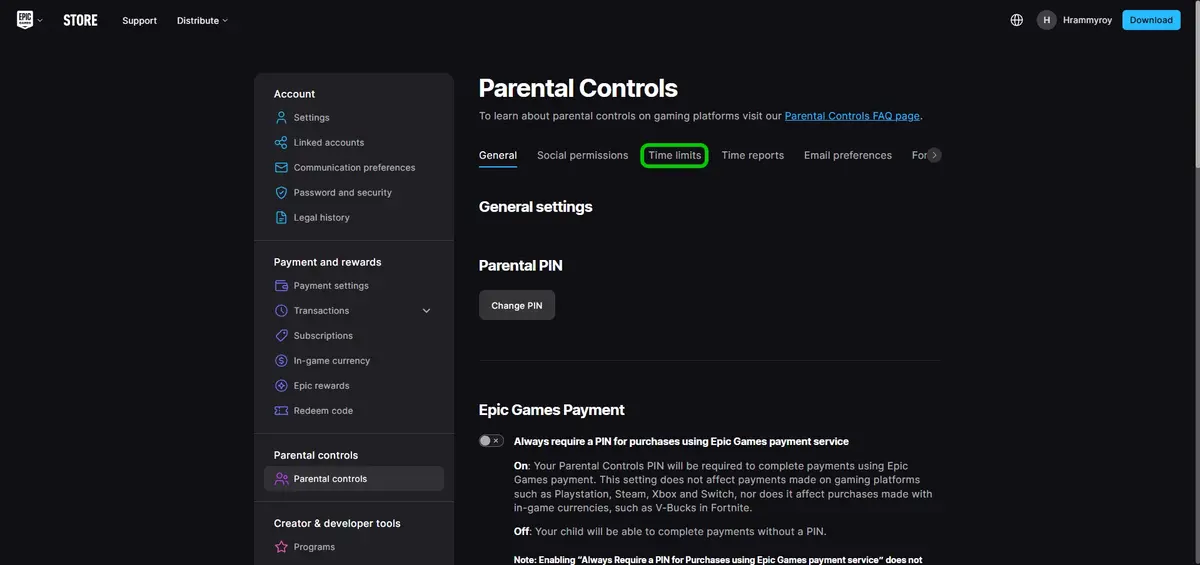
Step 4 – Click Set time limits to begin managing your child’s schedule.
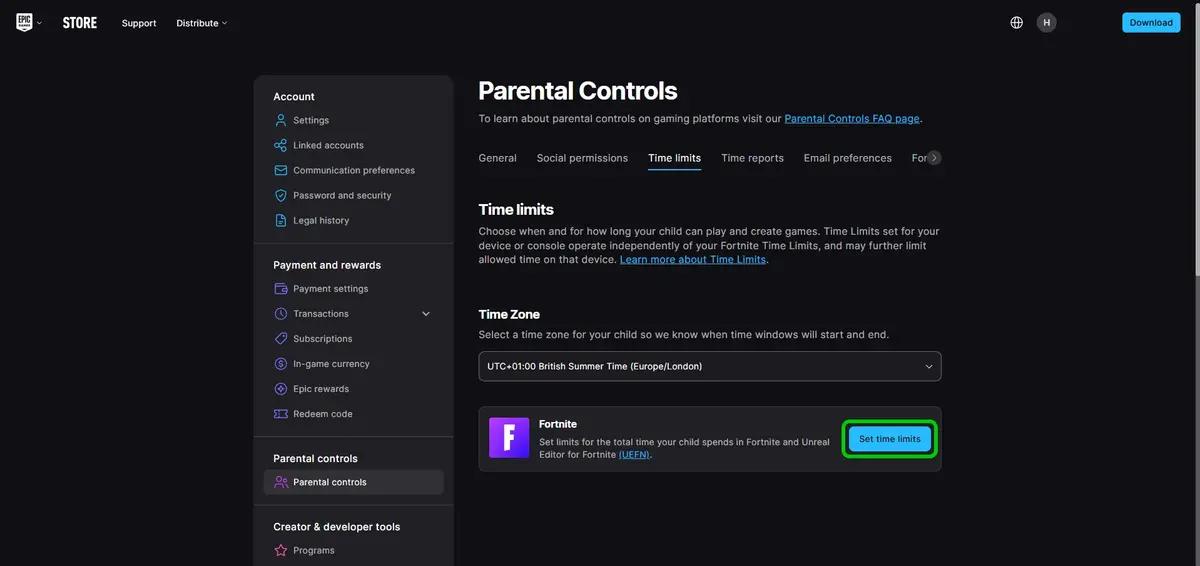
Step 5 – Switch on the toggle to set custom daily schedules.
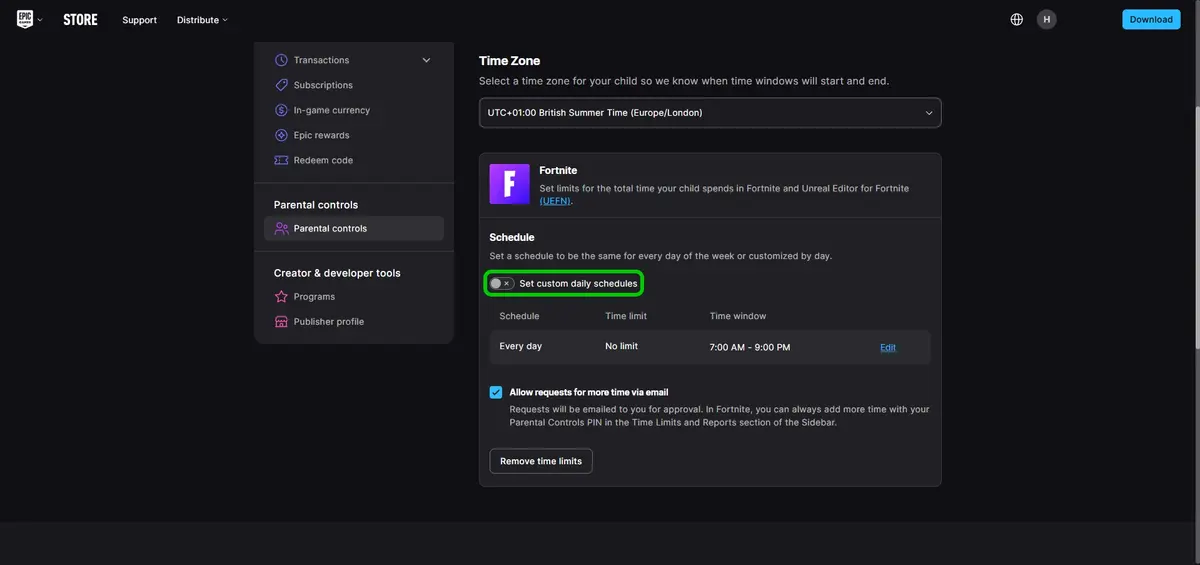
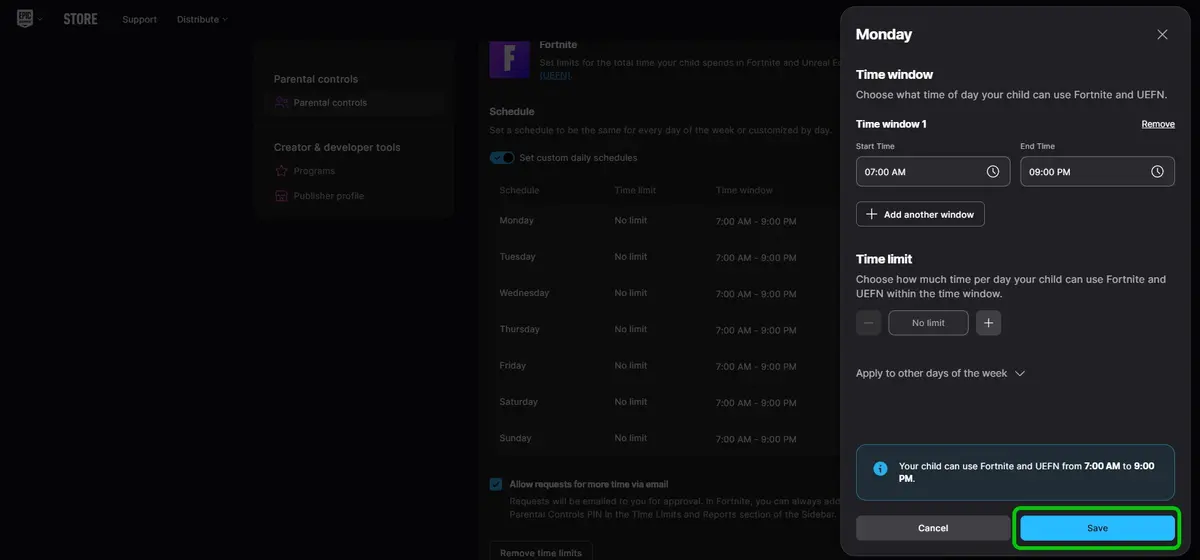
Step 6 – Click Edit to change the time window for a specific day.

Step 7 – Set a specific time window for your child, then click Save to confirm the time limit.
How to set parental controls in the Epic Games Store

View more guides
Discover more parental controls to manage children’s devices, apps and platforms for safer online experiences.